A simple guide to every tool, with pictures. Start with what you can make. Find your tool in the list, read the short steps, and you are ready to go.
How to use it: what can you make?
LazyEdits is for anyone who has something to show or say. If you can talk, record your screen, or write a few lines, you can make a good video. Find yourself below.
Teachers and course makers
Turn a lesson into a clean video with your voice, icons and zooms.
Make a whole course, lesson after lesson, with the same look.
Add intro and ending clips automatically.
Students
Record a project demo or presentation.
Turn notes or slides into a short explainer video.
Make revision videos you can watch again.
YouTubers and creators
Talking-head videos with captions, sounds and graphics.
Shorts, Reels and TikToks in vertical 9:16.
Tutorials where the screen zooms to what you talk about.
Business owners and shops
Product videos and simple ads.
"How to order", "how to book", "how to pay" videos for customers.
Your logo and colours on every video.
Teams and companies
Training videos for new staff.
Step-by-step guides for any tool your team uses.
Update videos after a change, in minutes instead of days.
Support and help centres
Answer the same question once, as a video.
Show every page of a website or app, one by one, with a voice.
Hide private details with blur.
Marketing and social media
Launch videos, offers, announcements.
Cut one long video into many short clips.
Same message, many languages.
Speakers, coaches and consultants
Turn a talk or a call recording into a polished video.
Add key points as cards while you speak.
Share a clear, professional video instead of a long message.
People who do not want to be on camera
Record only your screen and speak, or write the words and let your cloned voice read them.
Upload only audio (a podcast, a voice note) and get a video.
Anyone with a voice in another language
Your recording is in one language? Make it again in another one, in your own voice.
Reach new viewers without recording again.
Slides and documents
Turn a slide deck or a list of pictures into a narrated video.
Great for reports, proposals and lectures.
Busy people
Hand the job to an AI assistant (see the next sections): you describe the video, it builds it, you check it and press Export.
Three easy ways to start
1. By hand
Upload a video, tap a few tools, press Export. Best when you want full control.
2. With the built-in AI
Upload, write one sentence about what you want, press Generate video. Then fix anything with the AI Copilot.
3. With an AI assistant doing the work for you
Give a helper like Claude your clips or your idea. It uses LazyEdits for you, step by step, and shows you the result to approve.
Not on this list? If you have something to explain, show, sell, teach or share, LazyEdits can help. Start with the simplest way and grow from there.
Start: upload your video
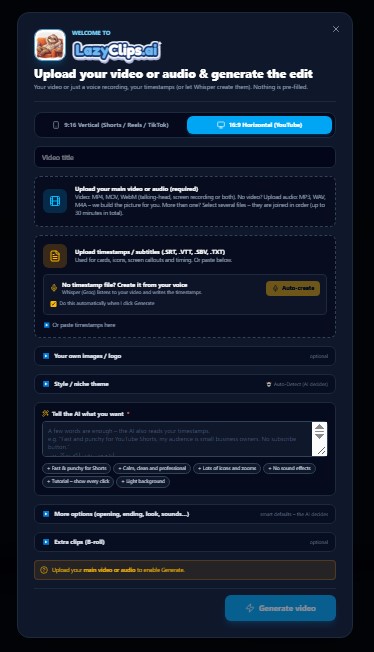
Everything begins on this first screen. You tell LazyEdits what you have, and what you want.
The upload screen
This is the first window you see. Fill in only what you need. Only the main video (or audio) is required.
Pick the shape: 9:16 Vertical for Shorts / Reels / TikTok, or 16:9 Horizontal for YouTube.
Video title: optional. It also helps the AI understand your topic.
Upload your main video or audio: MP4, MOV or WebM (talking-head or screen recording). No video yet? Upload an audio file (MP3, WAV, M4A) and we build the picture for you. You can add more than one file; they are joined in order (up to 30 minutes in total).
Timestamps / subtitles: upload an .SRT, .VTT, .SBV or .TXT file, or press Auto-create and Whisper listens to your voice and writes them for you.
Your own images / logo and Style / niche theme are optional. Leave the theme on Auto-Detect and the AI picks one.
Tell the AI what you want: write a few simple words, for example “Fast and punchy for YouTube Shorts”. You can also tap the small suggestion buttons under the box.
More options (opening, ending, look, sounds) and Extra clips (B-roll) are optional.
Press Generate video. If you would rather build everything yourself, use Next to open the editor without AI.
Tip: Short on time? Upload the video, type one sentence, press Generate. That is all you need.
The editor: where you work
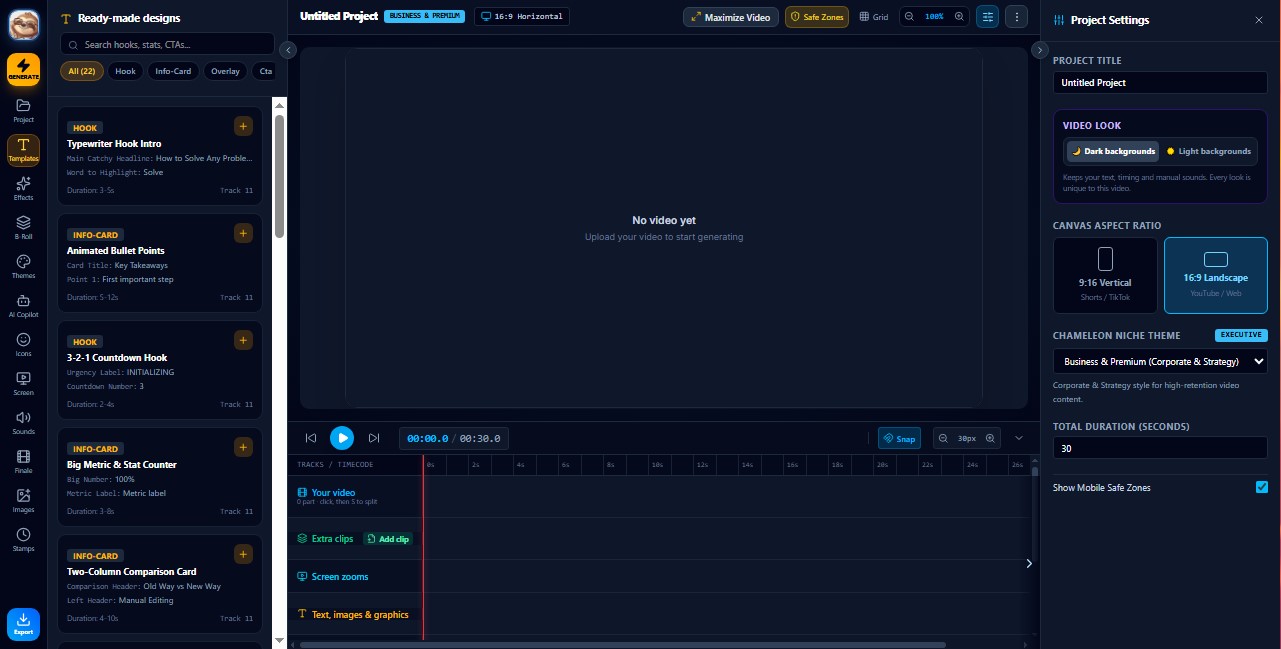
After the first screen you land in the editor. This is the home of your project.
The main screen
Left: the tool tabs. Middle: your video preview and the timeline. Right: project settings.
Left bar: Project, Templates, Effects, B-Roll, Themes, AI Copilot, Icons, Screen, Sounds, Finale, Images, Stamps. Click a name to open that tool. Export (bottom) saves your finished video.
Preview (middle): your video plays here. Press the blue play button or the Space bar. Right-click the picture for quick zoom and click effects.
Timeline (bottom):Your video, Extra clips (B-roll and screen recordings), Screen zooms, Privacy (blur), and Text, images & graphics. Click an item to select it; the settings for it open on the right. Hide a private area: press the Blur (crossed-eye) button in the top bar (or right-click the picture and choose Blur / hide an area), then drag a box over it. Set the strength and how long it shows in the panel on the right. Make the timeline bigger or smaller: use the – and + buttons (or the slider) at the top-left of the timeline, press FIT to see the whole video, or hold Ctrl and turn the mouse wheel.
Split: put the playhead where you want to cut and press S (or the Split button). Click a part to change its speed, delete it or drag it to a new place. Everything you added stays attached to the right moment.
Project Settings (right): title, dark or light backgrounds, canvas shape (9:16 or 16:9), the niche theme, total duration, and the mobile safe zones.
Tip: Your work is saved automatically on your own computer. If the browser closes by accident, open the app again and press “Continue my project”.
The tool tabs
Each tab on the left adds a different kind of help to your video.
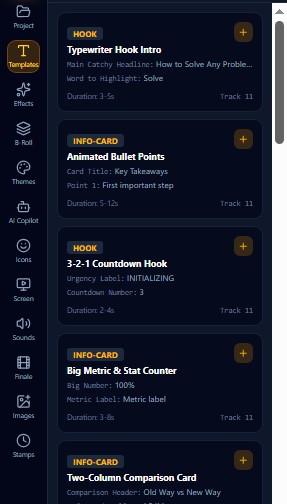
Templates: ready-made designs
Pre-made text cards such as hooks, bullet points, countdowns, big numbers and comparison cards.
Move the playhead to the moment you want.
Press the + on a design. It is added at the playhead.
Click it on the timeline to change the text, colours and size on the right.
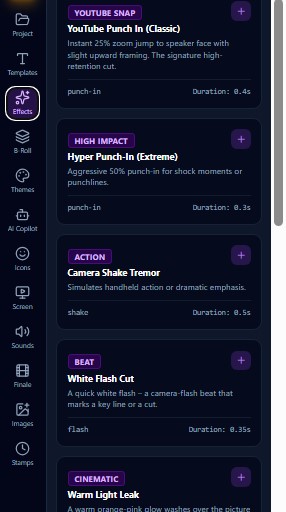
Effects: punch-ins, shakes, flashes
Quick screen effects for your main video: punch-in zooms, camera shake, white flash, light leak, glitch, tilt, colour pop, black & white, blur focus, bounce and vignette.
Pause where you want the effect.
Press the + on an effect. It starts at the playhead and lasts a fraction of a second or a few seconds (shown on the card).
Click it on the timeline to make it longer or shorter.
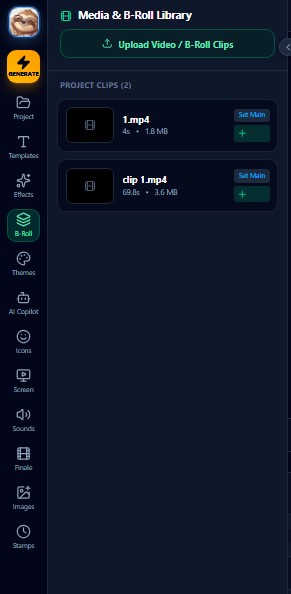
B-Roll: extra clips
Your library of extra videos and pictures.
Press Upload Video / B-Roll Clips and choose files.
Press the green + to place a clip at the playhead (it plays on top of your video).
Set Main makes a clip your main video.
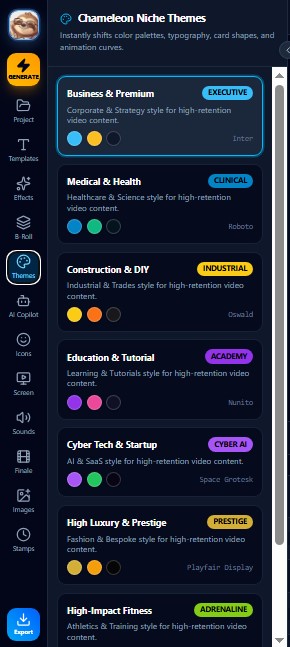
Themes: the look of your video
Each theme changes colours, fonts, card shapes and animations to fit a topic: Business, Medical, Construction, Education, Cyber Tech, Luxury, Fitness and more.
Click a theme. Your cards and graphics change at once.
You can also change it from Project Settings on the right.
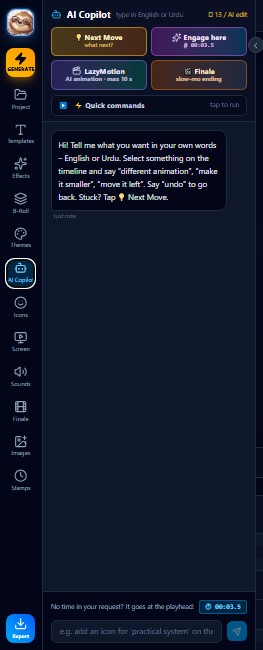
AI Copilot: just tell it what to do
Type in English or Urdu, like talking to an assistant. “Add an icon for practical systems”, “make it smaller”, “move it left”, “different animation”.
Select something on the timeline first if you want to change that item.
If you do not say a time, the change happens at the playhead (shown at the bottom).
Quick buttons: Next Move (what should I do next?), Engage here, LazyMotion and Finale.
Made a mistake? Type undo.
Tip: Each AI edit uses a few tokens (the number is shown at the top of the panel).
Icons and LazyIcons
Small pictures that match what you say, shown beside you. They never cover your face.
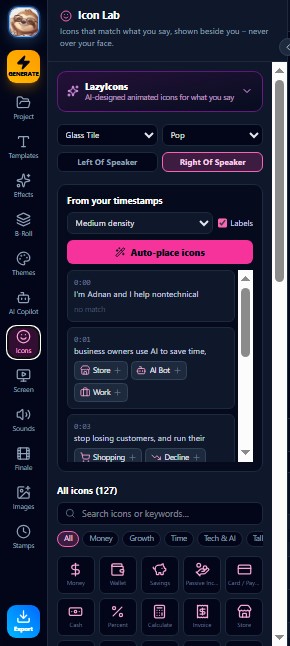
Icon Lab: auto-place icons
The Icon Lab reads your timestamps and finds an icon for each point.
Left / Right of speaker chooses the side.
Pick the density (how many icons) and press Auto-place icons.
Under it you see every line of your video with icon suggestions. Press the + next to an icon to add it yourself.
The big grid below has 127 icons. Search or use the category buttons.
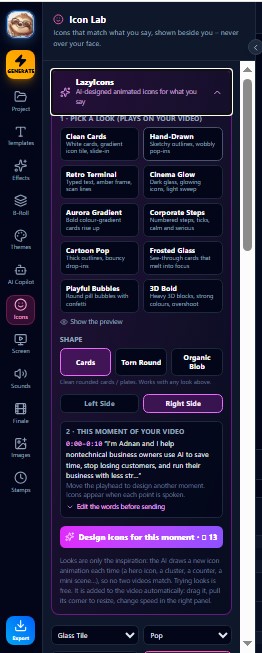
LazyIcons: AI designs an animated icon scene for you
LazyIcons is the smarter version. The AI designs a small animated scene for one moment of your video.
1. Pick a look: Clean Cards, Hand-Drawn, Retro Terminal, Cinema Glow, Aurora Gradient, Corporate Steps, Cartoon Pop, Frosted Glass, Playful Bubbles or 3D Bold.
Shape: Cards, Torn Round (rough paper edge) or Organic Blob.
Side: Left Side or Right Side of the speaker.
2. This moment of your video: shows the words spoken at the playhead. Press Edit the words before sending if you want to fix or change them.
Press Design icons for this moment. It is added automatically at that moment, and you can keep working while it is made. A small message at the bottom right tells you when it is ready.
Tip: Not happy? Press the button again for a new design. You will be asked before an existing one is replaced.
Screen recording tools
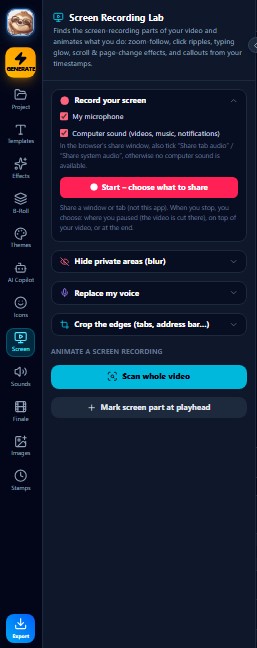
For tutorials. Record your screen right inside the app, hide private details, replace your voice and clean up the picture.
Record your screen
Record a window or a browser tab without leaving the editor.
Choose what to record: tick My microphone and/or Computer sound.
If you want computer sound, also tick “Share tab audio” or “Share system audio” in the browser's share window.
Press Start – choose what to share, pick the window or tab (not this app), and record.
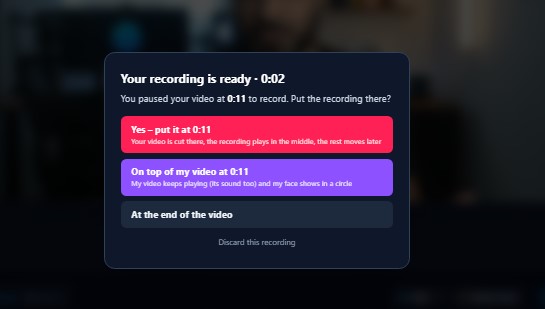
Press Stop when you are finished. A window asks where the recording goes (see the next screenshot).
Where should the recording go?
When you stop recording, this window appears and waits for you. It never decides for you.
Yes – put it at (the time you paused): your video is cut there, the recording plays in the middle, and the rest moves later.
On top of my video: your video keeps playing (with its sound) and your face shows in a circle on top of the recording.
At the end of the video.
Discard this recording if you do not want it.
Tip: Pause your video where you want the screen to appear, then record. That spot is remembered.
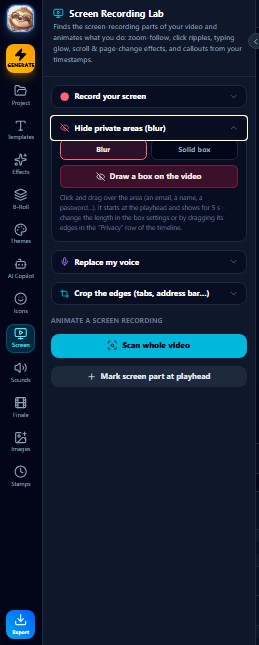
Hide private areas (blur)
Hide an email, a name or a password in a recording.
Choose Blur or Solid box.
Press Draw a box on the video and drag over the area.
The box starts at the playhead and shows for 5 seconds. Change its length by dragging its edges in the “Privacy” row of the timeline.
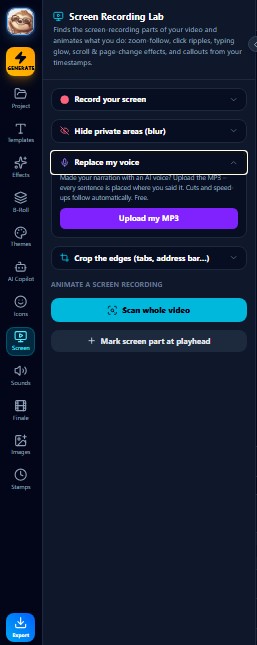
Replace my voice
Not happy with the sound of your recording (noise, echo)? Make the same narration with any AI voice tool and upload the MP3.
Press Upload my MP3 and choose the file.
The app listens to both and places every sentence of the new voice where you said it.
If you cut the video or speed parts up, the new voice follows automatically. It is free.
A short report lists any sentence that could not be matched. Back to my original voice undoes it.
Tip: Works best when the MP3 says the same sentences, in the same order, as your recording.
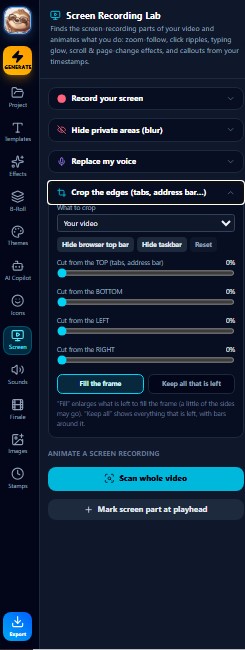
Crop the edges
Remove the browser tabs, address bar or taskbar from a screen recording.
Choose what to crop (your video or a clip).
Use Hide browser top bar or Hide taskbar for one click, or drag the sliders (top, bottom, left, right).
Fill the frame enlarges what is left. Keep all that is left keeps it small with bars around it.
Reset puts everything back.
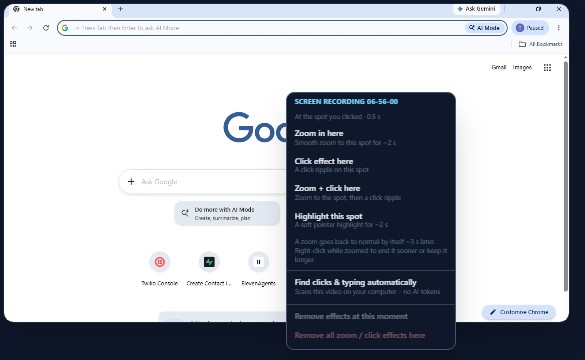
Right-click for quick zoom and click effects
Right-click the picture or a clip to add attention-grabbing effects exactly where you click.
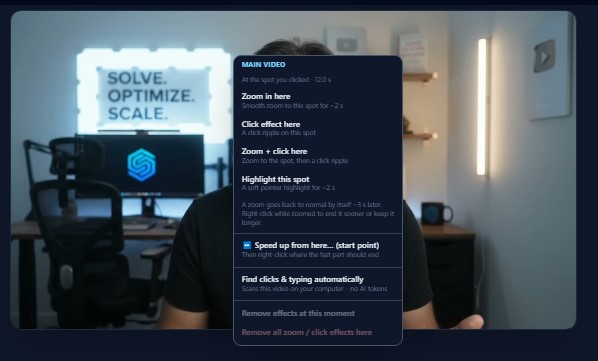
Right-click on your main video
Choose a quick effect at the exact spot you clicked.
Zoom in here: smooth zoom for about 2 seconds.
Click effect here: a click ripple.
Zoom + click here: zoom, then a click ripple.
Highlight this spot: a soft pointer highlight.
A zoom returns to normal by itself after about 3 seconds. Right-click again to end it sooner or keep it longer.
Speed up from here… (start point): then right-click where the fast part should end and choose 2×, 4× or 8× faster. The fast part has no sound, and everything else stays in place.
Find clicks & typing automatically: scans the video on your computer (no AI tokens).
Right-click on an extra clip
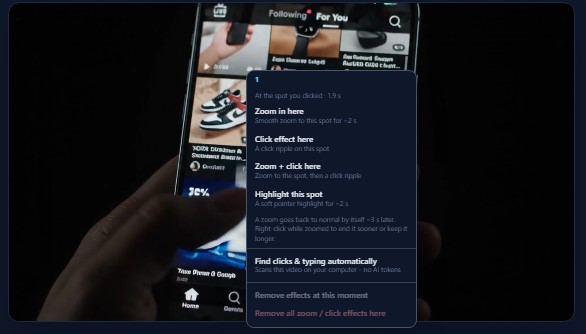
The same quick effects work on any B-roll or extra clip. Right-click the clip in the preview and choose.
Pick the effect at the spot you want.
Use Remove effects at this moment or Remove all zoom / click effects here to clean up.
Right-click on a screen recording
Perfect for tutorials: zoom to the button you are talking about and show a click.
Right-click exactly on the button or text.
Choose Zoom + click here.
Or press Find clicks & typing automatically and let the app do it.
Sounds, images and timestamps
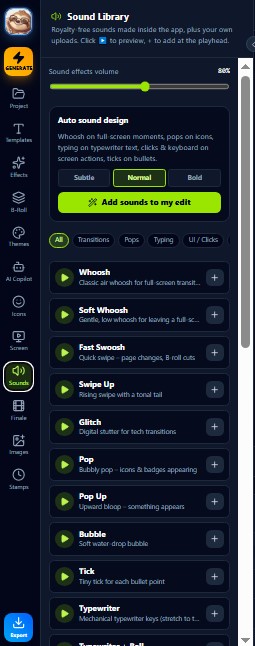
Sounds: whooshes, pops, typing
Royalty-free sound effects made inside the app, plus your own uploads.
Press the play button on a sound to hear it. Press + to add it at the playhead.
Auto sound design: choose Subtle, Normal or Bold and press Add sounds to my edit. Whooshes, pops, typing and clicks are placed for you.
Use the volume slider at the top for the overall level.
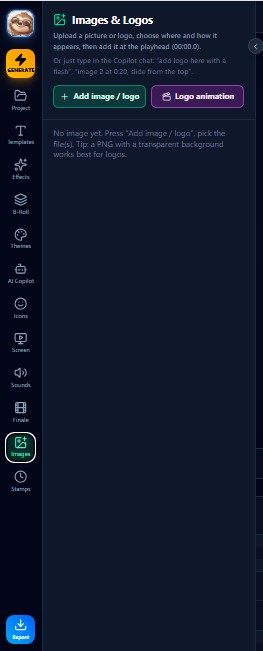
Images & Logos
Add your own picture or logo and choose how it appears.
Press Add image / logo and choose a file. A PNG with a transparent background works best for logos.
Choose where and how it appears, then add it at the playhead.
Logo animation makes a short animated logo intro.
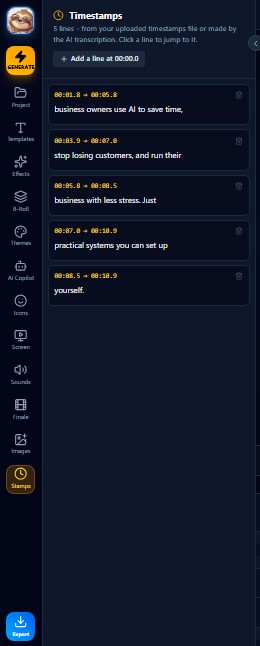
Timestamps (Stamps)
The words of your video with their times. Every smart tool (icons, cards, sounds) uses them.
Click a line to jump to it in the video.
Fix a wrong word by editing the text. Change the times if needed.
Add a line at the playhead adds a new one. The bin icon deletes a line.
Tip: You only need timestamps for graphics. A video with no graphics does not need them.
LazyMotion: animated explainers
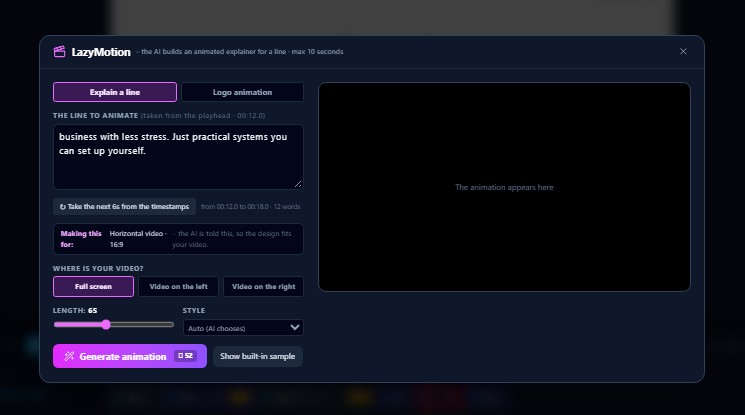
The AI builds a short animation for one line of your video (maximum 10 seconds).
Describe the line
Choose what to animate and how it should look.
The line to animate is taken from the playhead. You can edit it, or press “Take the next 6s from the timestamps”.
Where is your video? Full screen, video on the left or video on the right.
Length and Style (leave on Auto and the AI chooses).
Press Generate animation. The window closes and it is added to your timeline when ready. You can keep working.
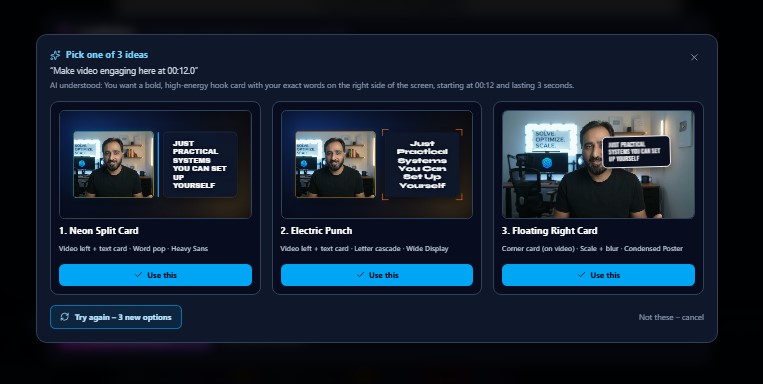
Pick one of 3 ideas
When you ask the AI for something big, it shows three ideas first.
Look at the three previews and press Use this on the one you like.
Not these? Press Try again – 3 new options.
Tip: Use it for important moments such as the hook, a key number or a call to action.
More good things to know
Finale
Make your last words unforgettable. Open the Finale tab, choose the part (from the playhead or the last words), choose how long (3 s, 5 s, 10 s or to the end) and pick a style. The voice and picture slow down with a cinematic black & white look.
Your face on a screen recording
When a recording plays on top of your video, select it and use Show my face on this clip. Pick a shape (circle, organic, torn paper, tall card or square), drag it where you want and change its size. Hide it for a moment by splitting the clip.
Cuts, speed and effects stay together
When you cut your video, move parts around or speed a part up, your cards, effects, blurs and sounds stay attached to the same moment of the video.
Safe-keeping
The app saves your work automatically on your own computer. If the browser closes by accident, open it again and press Continue my project.
LazyEdits with Claude and other AI tools
You do not have to click everything yourself. An AI assistant can use LazyEdits for you, like a helper sitting next to you. You stay the boss: you decide, it does the work.
How it works, in plain words
You tell the assistant what you want. For example: "Make a 5-minute lesson from these 4 clips" or "Show my website to new customers".
The assistant plans it. It looks at your files or your website, writes the words (or uses yours) and tells you the price in tokens before it starts.
It uses LazyEdits. It opens the app, records, adds voice, icons, zooms and sounds, and joins your clips.
It checks its own work. It looks at the result and fixes problems it finds.
You review. You watch the video and ask for changes in simple words.
You approve, then it renders. Nothing is exported or paid for without your yes.
Your voice, your look. The assistant can speak with your cloned voice and your chosen theme, so every video sounds and looks like you.
What an assistant can do for you
Look at your files
Reads a folder of clips, slides or notes and understands what is there.
Record a tutorial
Walks through a website or the app, clicks for you, and speaks each step in your voice.
Make a video
Joins clips, adds intro and ending, icons, motion, sounds and captions.
Make it in another language
Listens to your recording, translates, and says it again in your voice.
Turn slides into video
Reads each slide, writes the speech, and narrates it.
Add a voice to a silent recording
Finds the parts where things happen and speaks about them.
Check quality
Finds silence, blank frames, cut-off words and other problems before you see them.
Save and render
Saves your project as a folder, and exports the final video when you say go.
Works with Claude and with any other AI assistant that can use tools. The assistant needs the small helper called lazyclips-mcp. It talks to LazyEdits for you and keeps your login safe on your own computer.
Instruction and communication map for AI assistants
This part is written for the AI assistant (and for you, so you know what to expect). An AI tool that reads this page should know exactly what LazyEdits can do, when to use each function, and how to talk to the user. A machine-readable copy is at .
The golden rules
Ask what the user wants to achieve (who watches, what language, how long, what feeling). Then decide the tools yourself. Do not make a non-technical user choose tools.
Use the most helpful function, not only the obvious one. Before building by hand, check the function list below. Many jobs have a ready function.
Always tell the price first. Run lazyclips_estimate and show the token cost in plain words. Ask for a yes before spending tokens. Do not repeat paid work: reuse earlier results.
Look before you speak. In any recording, wait for the thing to appear on screen, look at it, and only then talk about it. Never talk about something that is not visible yet.
Positive instructions. Tell the app and the voice what to do ("pause one second, then zoom to the button"), not only what to avoid.
Check your own work. Run lazyclips_check_video after creating. Fix what it finds. Then show the user.
Never export or publish without the user's clear yes. The user approves the final video.
Keep the user's data safe. Never put passwords, keys or private details in a video or a message. Use blur for private areas.
Speak simply. The user may not be technical. Say what you did and what is next, in short sentences, in the user's language.
Who does what
The user
Brings the idea, files, voice and taste. Says yes or no. Gives the final approval.
The AI assistant
Plans, writes the words, runs the functions, checks quality, explains in simple language.
The helper (lazyclips-mcp)
The bridge. Opens the app, clicks, records, calls the voice, joins clips, runs ffmpeg.
LazyEdits Ai
The editor and the AI tools inside it: icons, motion, copilot, effects, render.
Step-by-step flow every assistant should follow
Understand. Goal, audience, language, length, shape (9:16 or 16:9), and what files exist.
Look.lazyclips_scan_folder to see clips; lazyclips_site_map to learn a website; lazyclips_slides_prepare for slides; lazyclips_narrate_prepare for a silent recording; lazyclips_dub_prepare for a recording in another language.
Plan and price. Write a short plan. Run lazyclips_estimate. Show plan + price.
check_video → polish with create_video → check_video again.
How to talk to the user
Start: one sentence saying what you will do.
Ask only what you must. One or two simple questions, with a suggested answer.
Before spending: "This will use about N tokens. Shall I continue?"
While working: stay quiet unless something changes. If something fails, say it plainly and say what you will try.
At the end: what you made, where to see it, one suggestion for what to improve, and a clear question: "Happy to export?"
Never say "done" if you have not checked the video.
Finding more value (for the assistant)
Before you answer, ask yourself: Can I offer a second language? A short vertical version for social media? A narrated version of the slides? A help video for each page of the user's website? A quality check? A saved project they can reuse? Offer the useful extras briefly, and let the user choose. Do not do paid extras without a yes.
The same rules in machine-readable form: . Point your assistant to this page or file when you start.
Export your video
Press Export (bottom of the left bar). Choose the quality (720p, 1080p or 4K), the speed (24, 30 or 60 frames per second) and the format (MP4 or WEBM). Studio quality draws every frame exactly on your computer for the sharpest result, and takes longer than the video length. You can keep working while it renders. When it is done, press Download.
Tokens
Tokens pay for the AI work. Your balance is shown at the top. A small message at the bottom right tells you whenever tokens are used. Tools that run on your computer (cuts, effects, sounds, blur, crop, replace voice) cost nothing.
Opening the editor and the first AI planning pass of a video up to 3 minutes: free.
Each extra 3 minutes of video for AI planning: 9 tokens.
An AI Copilot edit: 13 tokens. A LazyIcons design: 9 tokens.
A LazyMotion animation: 12 tokens.
Exporting: charged by the length of the finished video (at least one minute).
Prices may change. The number is always shown on the button before you press it.
Quick fixes
The video stops or the sound is missing
Press pause, then play. Refresh the page (Ctrl+F5) and choose Continue my project. Large phone videos play better after a refresh.
An effect lands in the wrong place
Effects go where the playhead is. Pause the video exactly where you want it first, then add the effect.
I made a mistake
Press Ctrl+Z to undo (Ctrl+Y to redo), or tell the AI Copilot “undo”.
The AI says there is no sound
The video has no audio track. Upload a video with sound, or upload your own timestamps file.